
Smart school solutions in Malaysia are usually bought one piece at a time: a fee system one year, panels the next, a card system after that. Each supplier solves one problem, and the school ends up with systems that do not talk to each other. As you set the 2027 budget, a single plan avoids that, even if you install it in phases.
This guide is for principals, bursars and admin heads planning school digitalisation for the coming year. It walks through the order to plan in, what to check on campus, and how to phase the work so the first step fits the last.
Why plan the whole campus at once
A smart campus is not a list of gadgets. It is one student record used in many places. The gate reader marks attendance against it. The canteen deducts from its e wallet. The library lends books against it. The panels show its timetable. When these are bought separately, each one keeps its own copy of the students, and staff spend their time keeping the copies in line.
Planning the whole campus first does not mean buying everything at once. It means every purchase is chosen to fit the same system.
Step 1: start with the school system
The school management system is the record everything else reads from: students, classes, timetables, fees, attendance and parents. Choose it first, then choose hardware that connects to it. Doing it the other way round usually means typing the same data twice, or paying for an integration later.
Our buyer's guide to school management systems covers what to compare in detail.
Step 2: survey the campus
A site survey turns a wish list into a plan. Walk every gate, classroom, hall, lab, canteen stall, library counter and hostel entrance. For each one, note:
- What happens there: entry, teaching, payment, borrowing, check in
- Which device it needs: card reader, attendance kiosk, Interactive Smart Panel, POS or balance kiosk
- Power points and network points at that spot
- WiFi coverage, tested with a phone during a busy period
- Who uses it, and at what times of day

Step 3: plan classrooms around the panel
An Interactive Smart Panel only helps if teachers can share to it reliably and use it without help. Plan the screen, the classroom WiFi and the teacher devices as one unit.
- 65", 75" or 86" panels suit most classrooms and meeting rooms, wall mounted or on a stand
- Halls and labs usually need a larger wall mounted display
- Each classroom needs WiFi that supports screen sharing while 30 to 40 students are also connected
- Teachers need training on the first day, not a manual
See the Interactive Smart Panels page for room by room options.
Step 4: one card for every point on campus
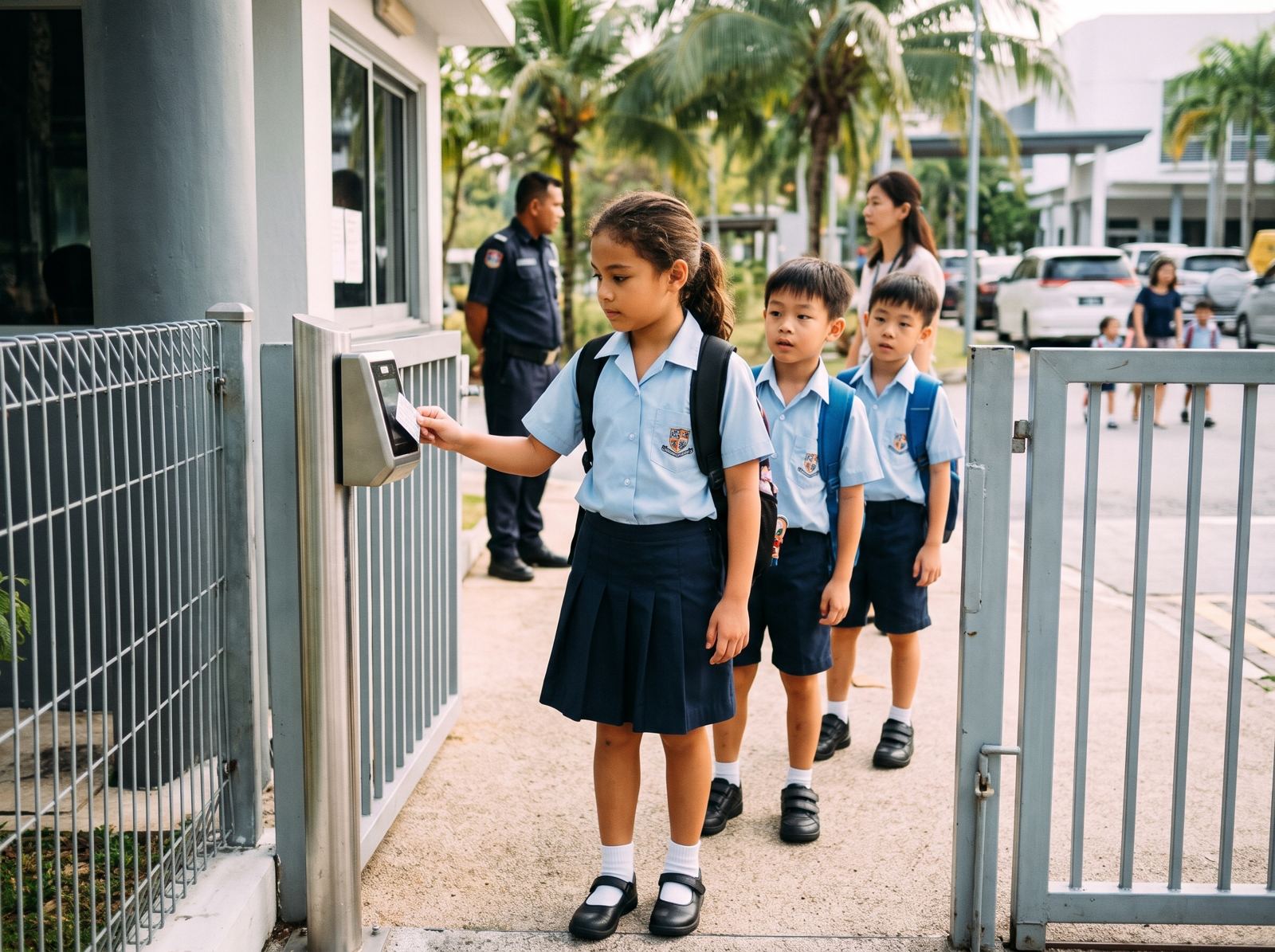
Give each student and staff member one RFID or NFC card that works at the gate, attendance kiosk, canteen, library and hostel. One card means one photo, one record, and one replacement process when it is lost. Attendance kiosks with face scan can run on an iPad or PC and keep working offline.
Step 5: do not forget the network
Every device above depends on the network. Panels share over WiFi, kiosks sync attendance, POS terminals process payments. Plan campus WiFi and cabling with the devices, not after them. Barcode tagging for laptops, projectors and library books fits in at the same time, using the Asset and Library modules in the school system. The ICT and Network page covers what is involved.
Step 6: phase it, but plan it whole
Most schools install in phases. Common orders are:
- Phase 1: school system and cashless canteen, because they touch every parent
- Phase 2: gates, cards and attendance kiosks, ideally before a new school year
- Phase 3: smart classrooms with panels, WiFi and teacher devices
November and December are when most schools approve hardware for the new year, so this is the time to survey and quote. Our smart school packages follow the same order.
Step 7: one contract, one support line
The last decision is who you call when something stops working. With one partner for software and hardware, a problem at the gate or the canteen has one owner. With four vendors, it has four. Ask any supplier how they handle a fault that crosses the system and the hardware.
What a good plan looks like
A good plan fits on two pages: a campus map showing every device and what it connects to, and a phased budget with software priced per student and hardware itemised. If a proposal cannot show both, ask for it.
Five planning mistakes we see often
Buying panels before the WiFi
A panel that cannot receive a teacher's screen becomes an expensive television. Survey and fix classroom WiFi first, or in the same project.
Two card systems
A gate card from one vendor and a canteen card from another means students carry two cards and the office manages two lists. Insist on one card for every point.
Choosing hardware by specification alone
A cheaper reader or kiosk that does not connect to the school system costs more in staff time than it saves. Ask how each device sends data to the system before comparing prices.
No training budget
Teachers, admin staff and canteen vendors each use different screens. Plan short, separate training sessions for each group, and repeat them at the start of the next term.
Leaving parents until last
Parents feel the change first, through the app, the e wallet and gate notifications. Tell them what is coming, when, and what they need to do, at least two weeks ahead.
Who should be in the planning group
Keep it small: the principal or a deputy for priorities, the bursar for fees and budget, the admin head for daily processes, and the IT head for the network and devices. Bring in the canteen operator and the hostel warden for their parts. One person should own the plan and be the single contact for the supplier.